VS Code rocks!
Download VS Code
Let VS Code help you
Remember, use VS Code the way it is intended, and it will do a lot of work for you. Check out how quickly this dude makes a page"https://youtu.be/yox4w7RS3W0?si=D4jPyaVEwIum-9ze&t=60", without typing much.
Let VS Code type for you. For example, if I wanted this code...
- <p>Burt is the best dog</p>
... I could type <, then p, then > then the content, then <, then /, then p, then >.
I could, but I wouldn't. I wouldn't type < to start. Don't do that. I'd type p instead. VS Code would show me a dropdown list of tags starting with p.
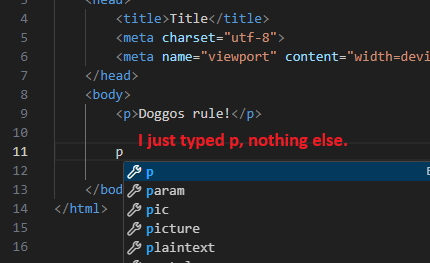
Type the first letter of the tag, not <.
VS Code will also indent for you. Put the cursor at the end of a line with a >, press Enter, and it should indent the next line correctly.
Use Tab to indent, Shift+Tab to outdent. You can select many lines at once, then press Tab to indent them all.
Exercise
Fun with VS Code
Make a folder on your PC, called doggo-magic. Inside it, make an HTML file called zeb-the-magic-doggo.html.
Take a screen shot of VS Code with the file in the folder. Something like this, but with the folder and file names just given:
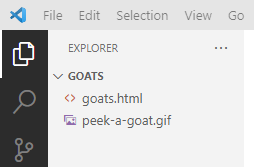
Upload your screen shot.
VS Code has lots of other goodies. Search the internet for tutorials. Try things out. You'll be glad you did.
Up next
Let's start making your pages look mahvelous.